


|
Growth Solutions Designed for Small to |
 |
|
Growth Solutions Designed for Small to |
|
|
|
Innovative Integrations: ERP, E-Commerce & QuickBooks Built for Manufacturers & Distributors |
 |
|
Innovative Integrations: ERP, E-Commerce & QuickBooks Built for Manufacturers & Distributors |
|
|
|
Top Business Solution Created for Distributors to Manage Warehouse, Inventory, Supply Chain & Logistics |
 |
|
Top Business Solution Created for Distributors to Manage Warehouse, Inventory, Supply Chain & Logistics |
|
|
|
Innovative Integrations: ERP, E-Commerce & QuickBooks Built for Manufacturers & Distributors |
|
|
Innovative Integrations: ERP, E-Commerce & QuickBooks Built for Manufacturers & Distributors |
|
|

















"We're big xTuple fans," said Jacobs. "It's only taken a bit over a year to go from teaching reluctant people very basic skills to seeing them become totally convinced it was the best decision we could have ever made."
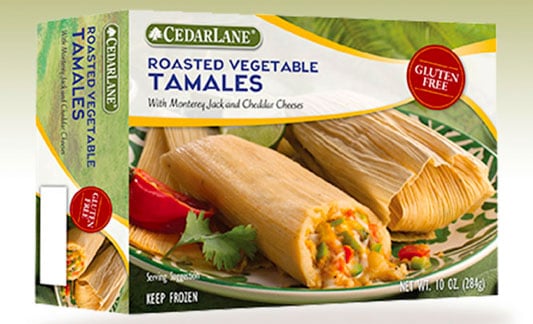
“We chose xTuple, at first, for the wrong reason — price. I was intrigued by the incredible savings,” stated Baroco. “But we stayed for the right reasons. xTuple is a great product with a great company behind it.”
Contact
xTuple
A CAI Software Company
24 Albion Rd, Suite 230
Lincoln, RI 02865
+1-757-461-3022
About
"xTuple" (verb) — to grow; to increase exponentially. Our mission is to help manufacturing and inventory-centric companies use management software and best practices to grow their business profitably.